The EM Loan Amortization process in Vista lets you set up asset loans, create an amortization schedule, and automatically generate AP invoices and payments.
Steps to Set Up a Loan
Set Up Asset
Set up the equipment in EM Equipment and the asset in EM Assets
Open EM Loans
Navigate to: User Database > EM Loans
Enter Loan Details
Equipment & Asset: Select the related asset
Note ID: Any number; allows multiple loans per asset
Note Description: Name of the loan (informational only)
Original Amount: Total loan amount
Start Date & Start Month: Used for payment schedule
Term Interval: How often payments occur (monthly, quarterly, etc.)
Number of Payments (Term): Based on interval
APR: Enter interest rate (if >1, it converts automatically to decimal when calculating)
Payment Amount (Optional): Enter to override automatic calculation
Total Interest & Total Cost: Leave blank; calculated automatically
Enter Vendor & Accounts
Vendor Number: Vendor for AP invoices/payments
Principal GL Account
Interest GL Account
Calculate Amortization
After entering all data, click Calculate Amortization to generate the schedule and totals
This sets up the loan for automatic invoicing, payments, and reconciliation.
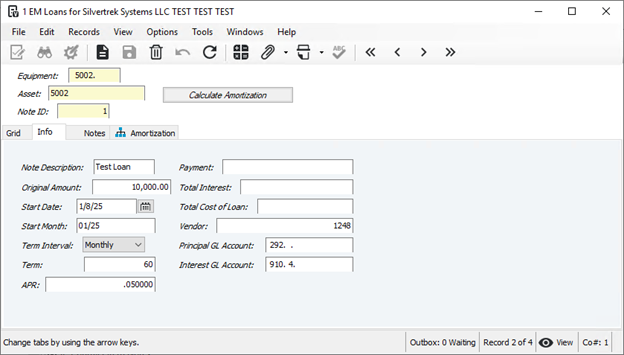
- Press the Calculate Amortization button and the automatic process will update the Payment (if the field was left blank), as well as the Total Interest and Total Cost of Loan fields.
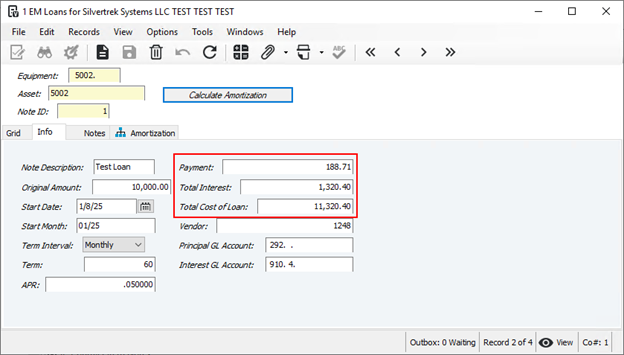
- The Amortization tab will be populated as well.
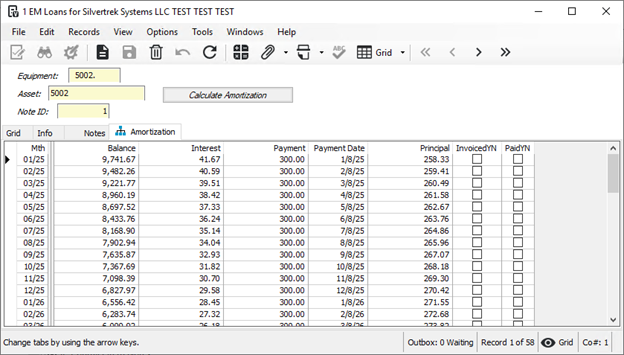
Loan Amortization
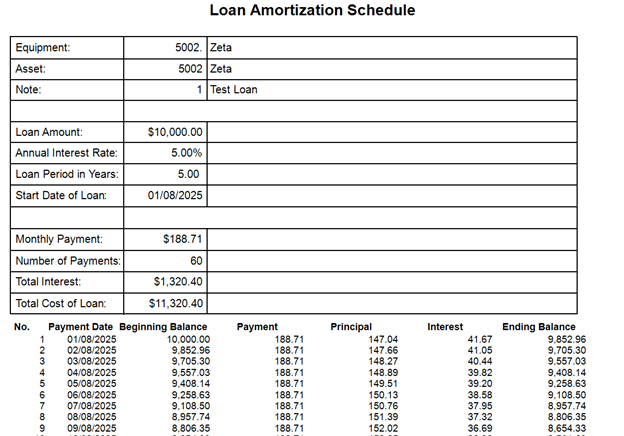
- The loan amortization schedule can be obtained by running the “+ EM Loan Amortization Schedule” report found in the Equipment Management module (Equipment Management > + EM Loan Amortization Schedule).
- Select the equipment, asset and note ID to run the report for; the “Display Loan Information” checkbox will show the static loan information entered in the Loan Setup process.
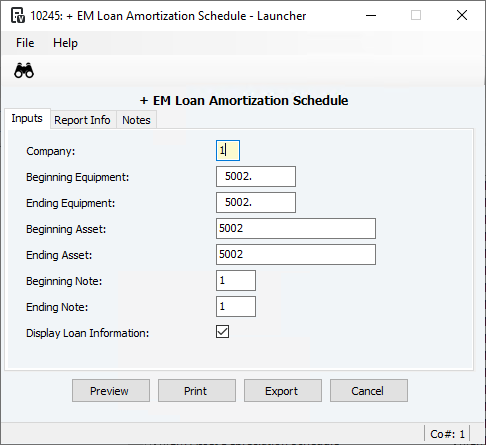
- This report shows every payment to be made, including the ending balance after the payment. It is designed to cleanly export to a spreadsheet format.
Loan Process
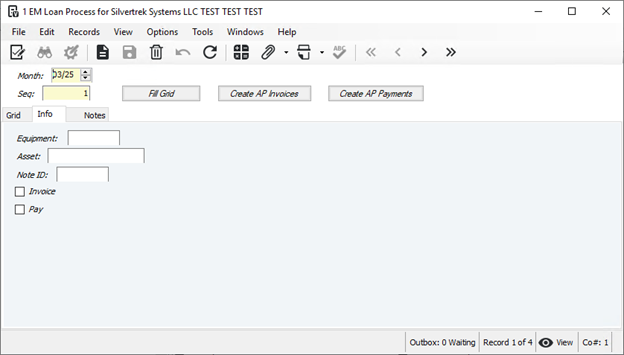
- Open the EM Loan Process form found in the User Database module (User Database > EM Loan Process).
- In the Month field, enter the month to process invoices and/or payments for, then enter “1” in the Seq field and save the record.
- Press the Fill Grid button. Pressing this button will populate the grid with the corresponding payments from the EM Loan Amortization form.
- The button will not create duplicate records upon multiple presses.
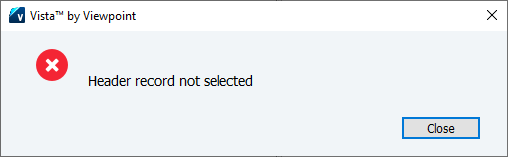
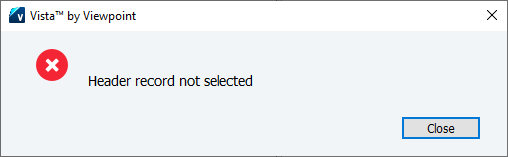
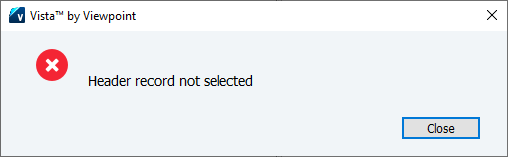
- An error will be displayed if the button is pressed while Seq “1” is not selected.
Automatically Create AP Invoices
- Select the invoices to create by checking the Invoice box on the records.
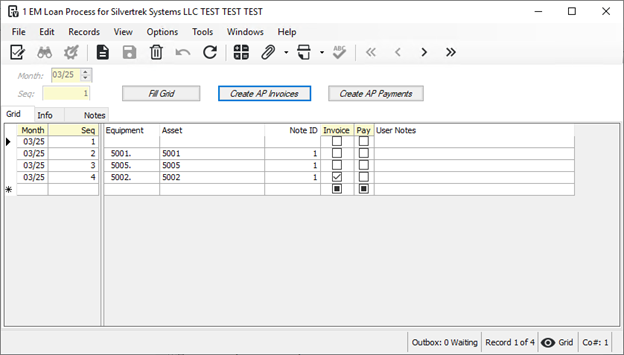
- Press the Create AP Invoicesbutton.
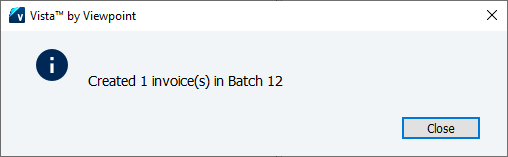
- A message will be displayed informing the user which AP Transaction Entry batch the invoices are in.
- An error will be displayed if the button is pressed while Seq “1” is not selected.
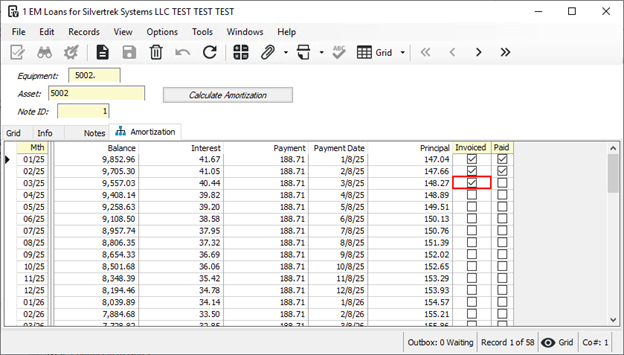
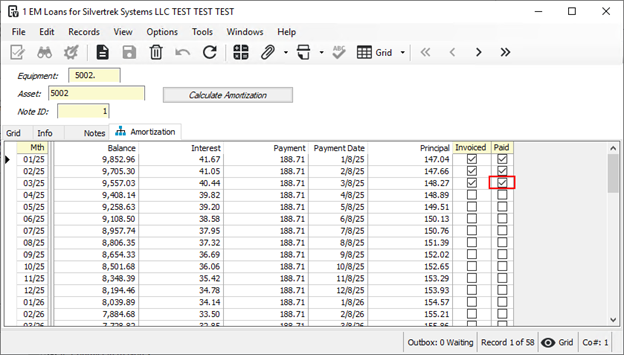
- The Invoiced box will be checked on the Amortization tab in EM Loans for the month used in EM Loan Process.
- A message will be displayed informing the user which AP Transaction Entry batch the invoices are in.
- Open the batch in AP Transaction entry, validate and post.
Automatically Create AP Payments
- Select the payments to create by checking the Pay box on the records.
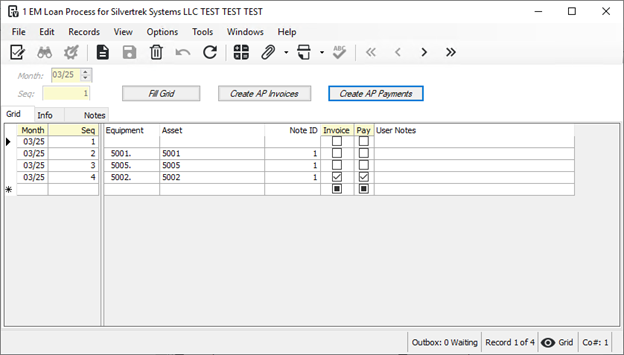
- Press the Create AP Paymentsbutton.
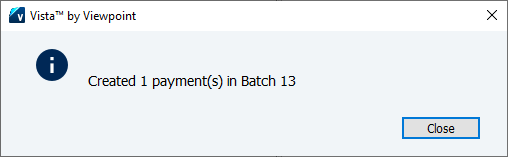
- A message will be displayed informing the user which AP Transaction Entry batch the payments are in.
- An error will be displayed if the button is pressed while Seq “1” is not selected.
- The Paid box will be checked on the Amortization tab in EM Loans for the month used in EM Loan Process.
- A message will be displayed informing the user which AP Transaction Entry batch the payments are in.
- Open the batch in AP Transaction entry, validate and post.
Was this article helpful?
That’s Great!
Thank you for your feedback
Sorry! We couldn't be helpful
Thank you for your feedback
Feedback sent
We appreciate your effort and will try to fix the article