How to find and fix differences between the AP balance and the GL balance.
Reports You’ll Use
- AP Open Payables
- GL Trial Balance
- AP Check Register
- AP Batch Transactions
- HQ Batch Control
Step 1: Confirm Where to Start
- Make sure the prior month balanced, or start with the last balanced month.
- Verify no open AP batches:
- Use HQ Batch Control
- Filter by Source = AP
- All batches must be Status 5 or 6
Step 2: Confirm the Out-of-Balance Amount
- Run AP Open Payables.
- Run GL Trial Balance.
- Compare totals to confirm the difference (delta).
Tip: When using AP Aged Payables reports:
- Set Select by Month/Invoice Date = Month
- Leave Through Invoice Date blank
- These reports are date-driven and can miss invoices if invoice dates don’t match post months.
Step 3: Identify the Source of the Difference
Determine whether the difference is caused by:
- Transactions
- Payments
- Both
Step 4: Check for Payment Issues
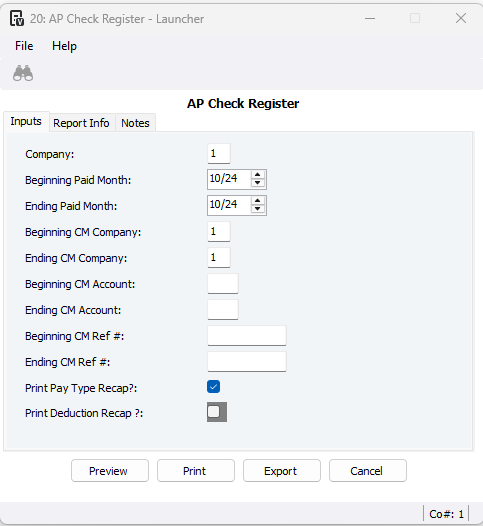
- Run AP Check Register:
- Launch by Paid Month
- Set Print Pay Type Recap = Yes
- Do NOT run by Date
- Run GL Trial Balance:
- Use the payment GL account
- Match Beginning/Ending Month
- Set Source = AP
- Set Journal = Payments Journal (found in AP Company Parameters > GL Payment Posting)
- Compare AP and GL totals by payment type.

Step 5: Check for Transaction Issues (if needed)
- Use AP Batch Transactions to review invoice postings.
- Use HQ Batch Control to confirm all batches posted correctly.
Checking Transaction Issues (AP vs GL)
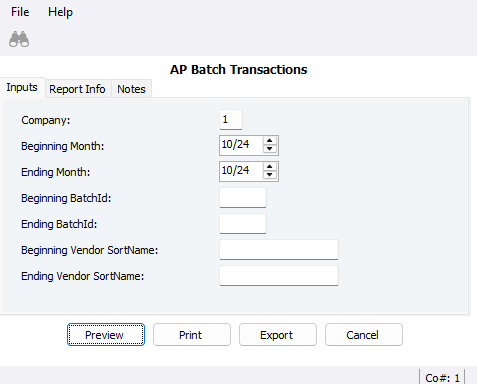
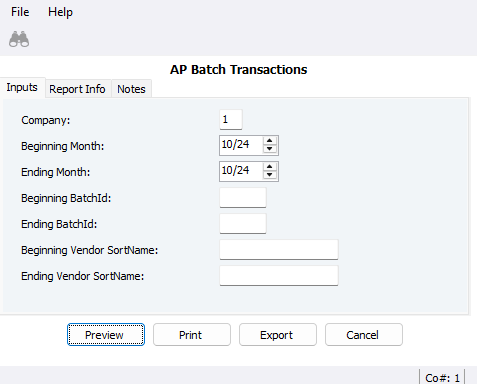
- Run AP Batch Transactions
- Go to Accounts Payable > Reports
- Run by Beginning / Ending Month
- Export to Excel to calculate the total for the month (the report has no totals).
2. Run GL Trial Balance
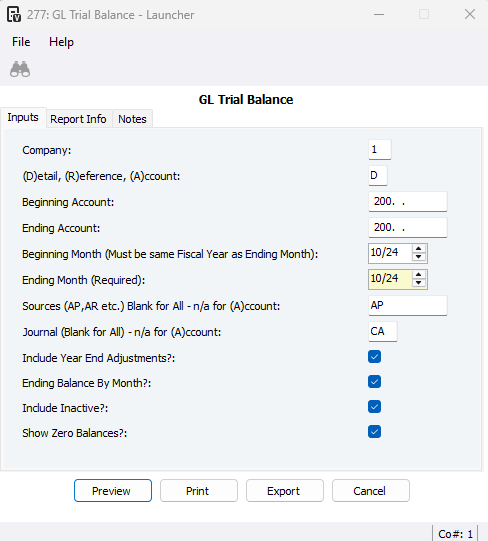
- Use the expense GL account(s)
- Match the Beginning / Ending Month
- Set Source = AP
- Set Journal = AP Expense Journal (found in AP Company Parameters > GL Expense Posting)
3. Compare Totals
- Compare the AP transaction total to the GL Trial Balance total.
- Any difference points to a transaction-related imbalance.
Finding Details After You Identify the Cause
- Check HQ Batch Control
- Go to Headquarters > Programs > HQ Batch Control.
- Open the Grid tab.
- Filter the batches
- Set Source = AP Payment or AP Entry
- Set Status = 5 – Posted Successfully
- Check interface levels
- Widen the rows to view the bNotes column.
- Look for:
- GL Payment Interface Level set at: 0
- GL Expense Interface Level set at: 0
- Interface level 0 means the batch did NOT post to the GL.
- Understand when this happens
- This usually occurs during Go-Live or setup issues.
- Fix the issue
- Either:
- Delete and reprocess the payments/transactions with the interface turned ON, or
- Post a manual GL journal entry to correct the imbalance.
- Either:
Additional Checks for AP Out-of-Balance
1. Verify All AP Batches Are Final
- Go to HQ Batch Control.
- Filter Source = AP Payment.
- Sort by Status.
- Make sure there are no batches with these statuses:
- 0 Open
- 1 Validation in Progress
- 2 Validation Errors
- 3 Validation OK
- 4 Posting in Progress
- Any batch not Posted Successfully or Canceled will cause an imbalance.
2. Check for Other Sources Posting to AP GL
- Run a GL Trial Balance for the affected AP GL account and month.
- Run it once per Source (leave Journal blank):
- Payroll
- Job Cost
- Other subledgers
- If another source posted to AP in error, correct or reverse those entries.
3. Review Manual GL Entries
- Some manual GL entries may be valid (Go-Live or corrections).
- Any other manual postings to AP should be reviewed and corrected if inappropriate.
4. Prevent Future Errors
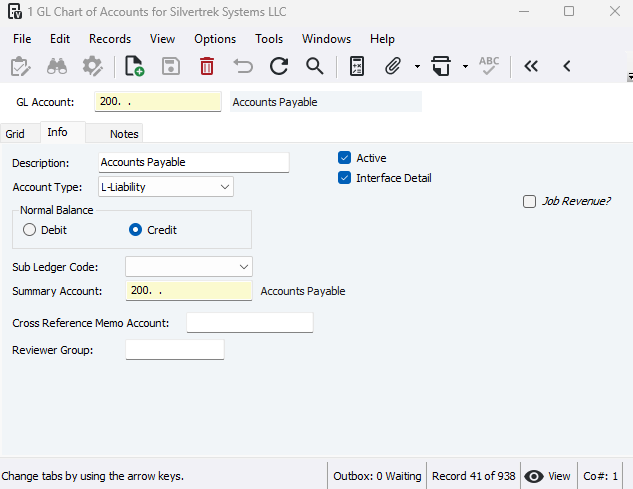
- Assign Subledger Code = P-Payables to AP GL accounts:
- General Ledger > Programs > GL Chart of Accounts
- This prevents other subledgers from posting to AP.
- Note: This does not prevent postings from Source = General Ledger.
If AP Is Still Out of Balance
1. If the Difference Is in Payments
- Run:
- AP Check Register
- GL Trial Balance
- Source = AP
- Journal = CA (or payments journal)
- Export both to Excel.
- Sort and compare using common fields (your choice), such as:
- Amount
- Vendor
- Check number (CM Ref)
- GL description
- Find the line that doesn’t match — this identifies the issue.
- Tip: The AP Check Register does not include Batch ID. Use Excel tools (sorting, filtering, or Text-to-Columns) to match data.
2. If the Difference Is in Transactions
- Run:
- AP Batch Transactions
- GL Trial Balance
- Source = AP
- Journal = AP (expense journal)
- Export both to Excel.
- Compare:
- Batch ID (AP report) to GL Ref (GL report)
- Subtotal by batch to find which batch is out of balance.
- Correct the issue in that batch.
3. Excel Comparison Tip
- If rows don’t line up, insert/delete rows to align matching data.
- Then use a simple formula to calculate the difference (delta).
Was this article helpful?
That’s Great!
Thank you for your feedback
Sorry! We couldn't be helpful
Thank you for your feedback
Feedback sent
We appreciate your effort and will try to fix the article