You must create a new fiscal year before you can:
Open new GL batches
Post transactions
Enter budgets for the new year
Note: You can still post to the prior year until its periods are closed.
Steps
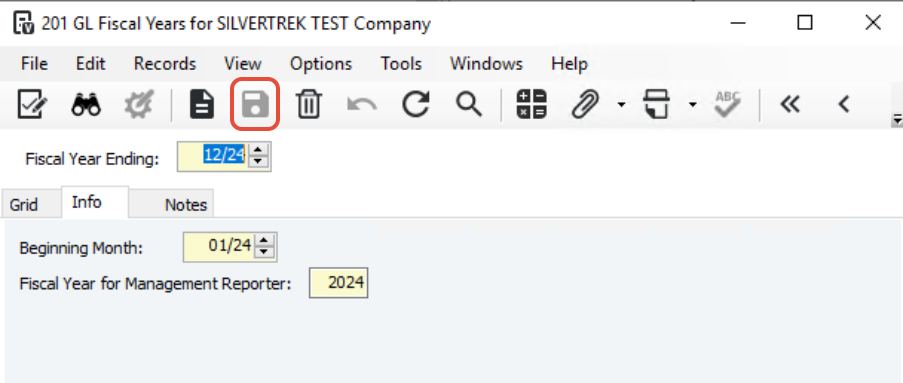
Go to GL Fiscal Years
General Ledger > Programs > GL Fiscal YearsClick New / Add
Enter the Fiscal Year
Use the 4-digit year (e.g., 2026)
This year is used for GL processing and reporting
Set Start and End Months
Start Month: e.g., 1 (January)
End Month: e.g., 12 (December)
Fiscal years cannot overlap
Save
Important Notes
The new fiscal year is now available for:
Posting transactions
Creating GL batches
Entering budgets
Once budgets or beginning balances are entered, the fiscal year cannot be deleted
Always double-check dates before saving
Was this article helpful?
That’s Great!
Thank you for your feedback
Sorry! We couldn't be helpful
Thank you for your feedback
Feedback sent
We appreciate your effort and will try to fix the article