AP Email Pay Info is used to email payment details to vendors. This provides vendors with a payment remittance notification, helping them apply payments correctly and reducing the need to manually send payment details.
TABLE OF CONTENTS
Setup:
1-Go to Accounts Payable>Programs>AP Vendors
2-Navigate to the vendor and go to the Add'l Info tab
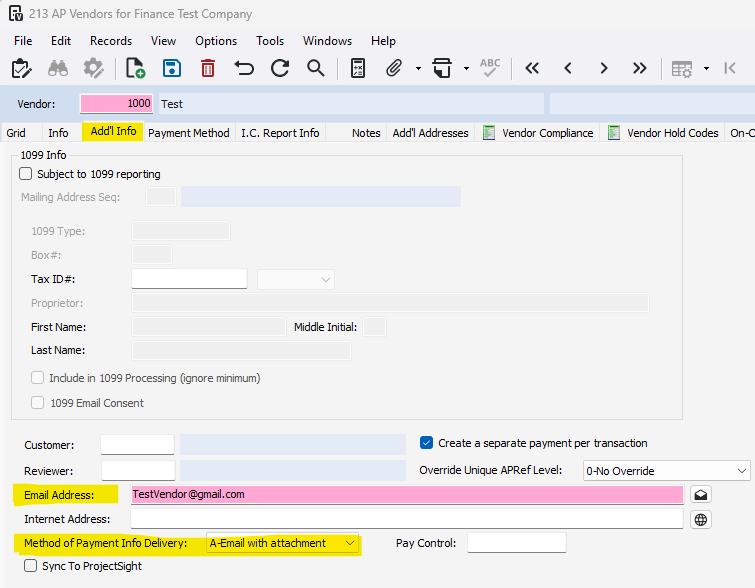
3-Ensure the vendor has an e-mail setup
4-Go to the Method of Payment Info Delivery dropdown and select the preferred method
N-None: The vendor will not receive an email
A-Email with attachment: The vendor will receive an email with the payment information report attached
E-Email as notification: The vendor will receive an email without an attachment
If you choose A-Email with attachment, Go to Accounts Payable>Programs>AP Company Parameters. Ensure that the Attach Vendor Payment Report to Pay History is checked.
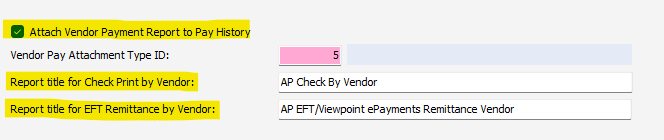
The reports listed in Report title for Check Print by Vendor and Report title for EFT Remittance by Vendor fields will be attached in the email.
Steps:
1-Process and post a payment batch
View payment articles here for additional help: [AP] Pay an AP Invoice, [AP] How to Make an EFT Vendor Payment
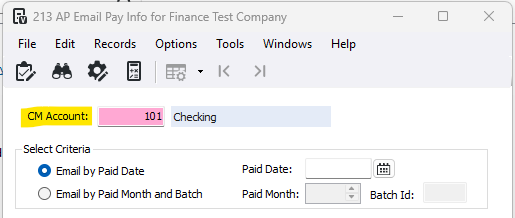
2-Go to Accounts Payable>Programs>AP Email Pay Info
3-Select the CM Account the payment was made out of
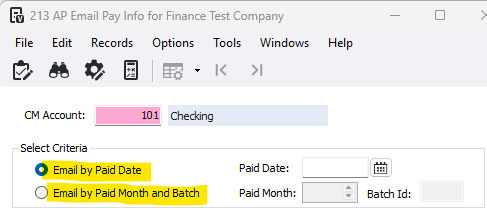
4-Select the criteria
Email by Paid Date: Choose Paid Date (F4 in Paid Date to select available options)
Email by Paid Month and Batch: Enter the paid month and in the Batch Id field, press F4 for available IDs
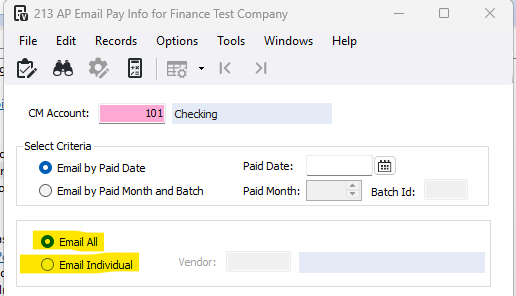
5-Select whether to email all vendors or an individual vendor
6-Enter, edit, or review the return address, subject, and body
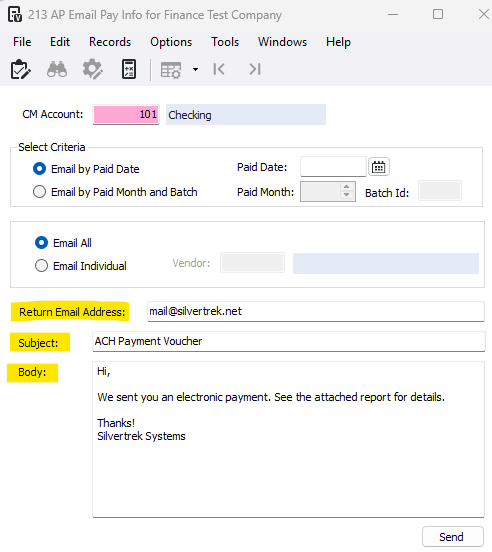
7-Once complete, press Send
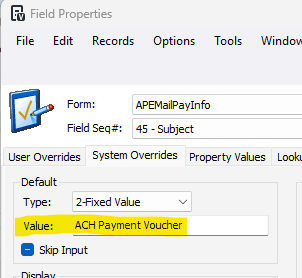
How to Preset Subject and Body:
1-Go to Accounts Payable>Programs>AP Email Pay Info
2- Click into the Subject and/or Body field
3-Press F3
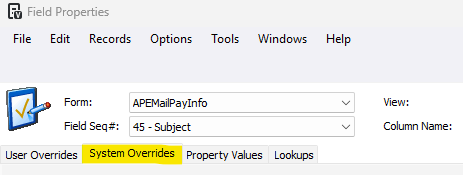
4-Go to the System Overrides tab
5-In the Default section, change the Type to 2-Fixed Value
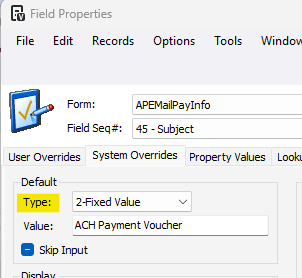
6-In the Value field, enter the preset verbiage
Was this article helpful?
That’s Great!
Thank you for your feedback
Sorry! We couldn't be helpful
Thank you for your feedback
Feedback sent
We appreciate your effort and will try to fix the article