Purpose
- Use this only for initial setup, adding new employees/resources, or adding HR after Payroll is implemented.
- Do not use it to update static info, benefits, or salary:
- Static info → HR Resources
- Benefits/Salary → HR Update Benefit/Salary to PR
Key Concepts
Choose direction:
PR → HR (update HR from Payroll employees)
HR → PR (update Payroll from HR resources)
- Specify the PR Company and employee/resource range, or initialize all eligible.
- Optionally exclude inactive employees/resources.
PR → HR: No duplicate SS# or first/last name allowed in HR.
HR → PR: No duplicate PR Employee# or SS# allowed in Payroll; required fields must be completed.
Steps
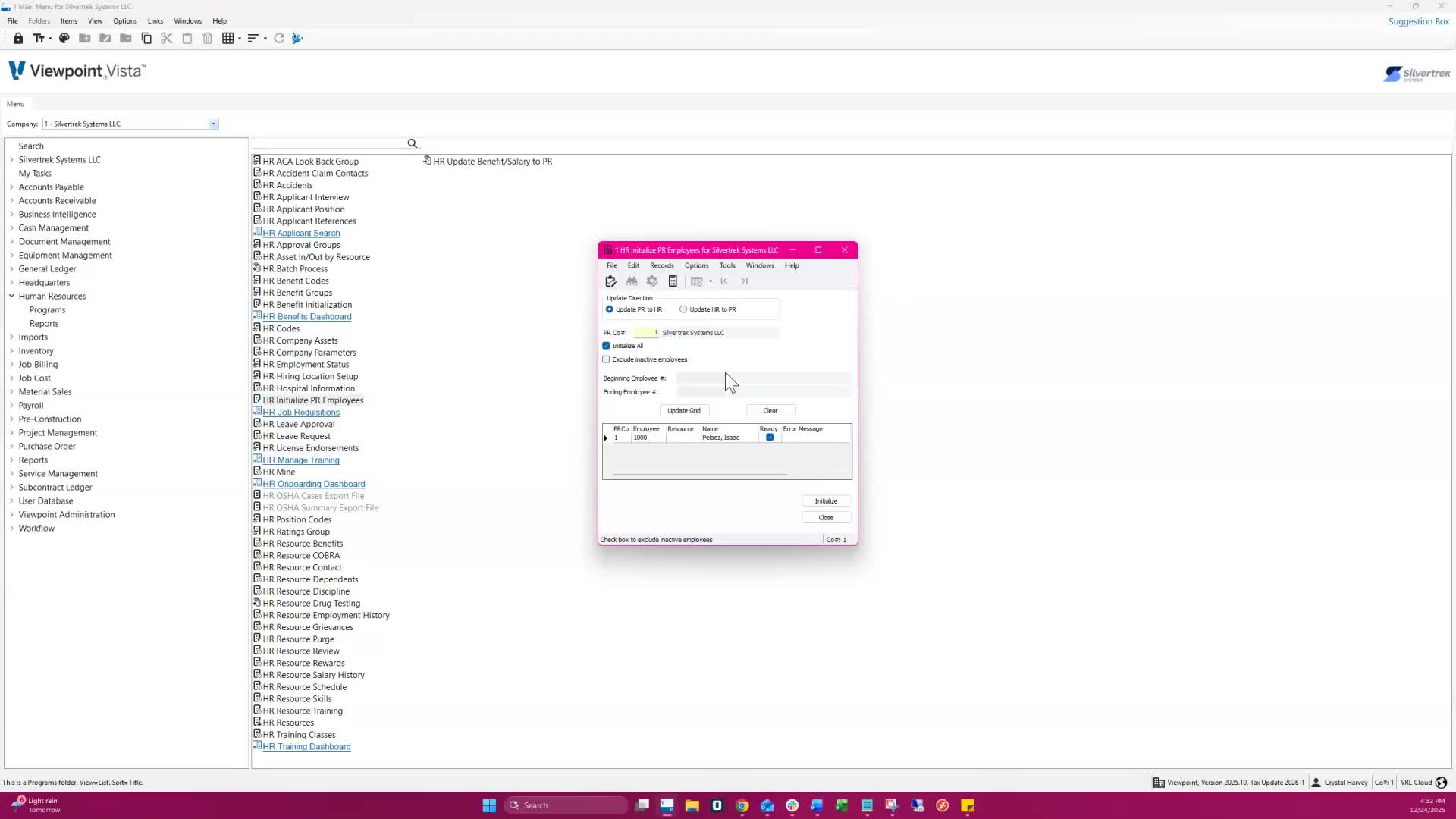
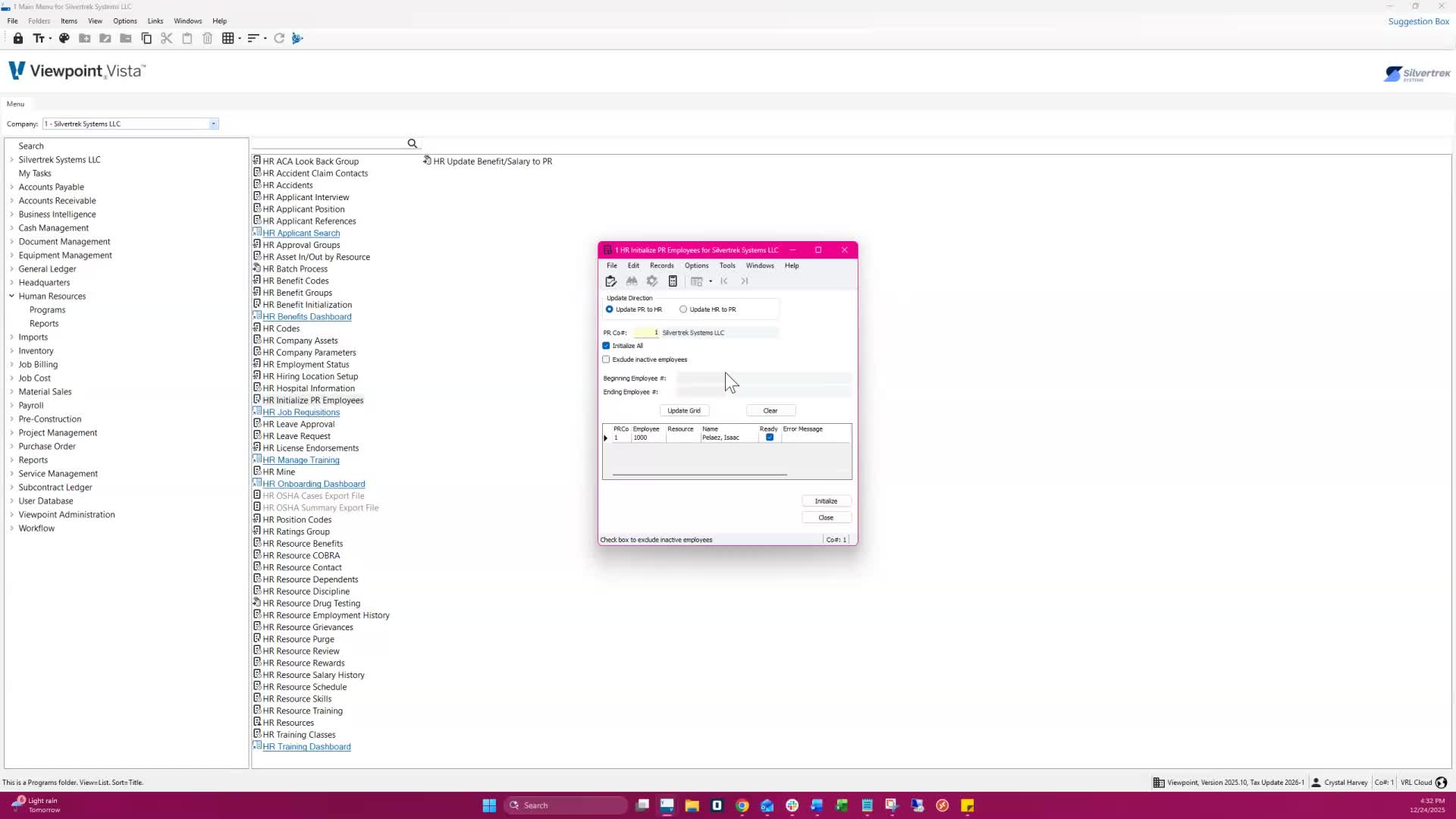
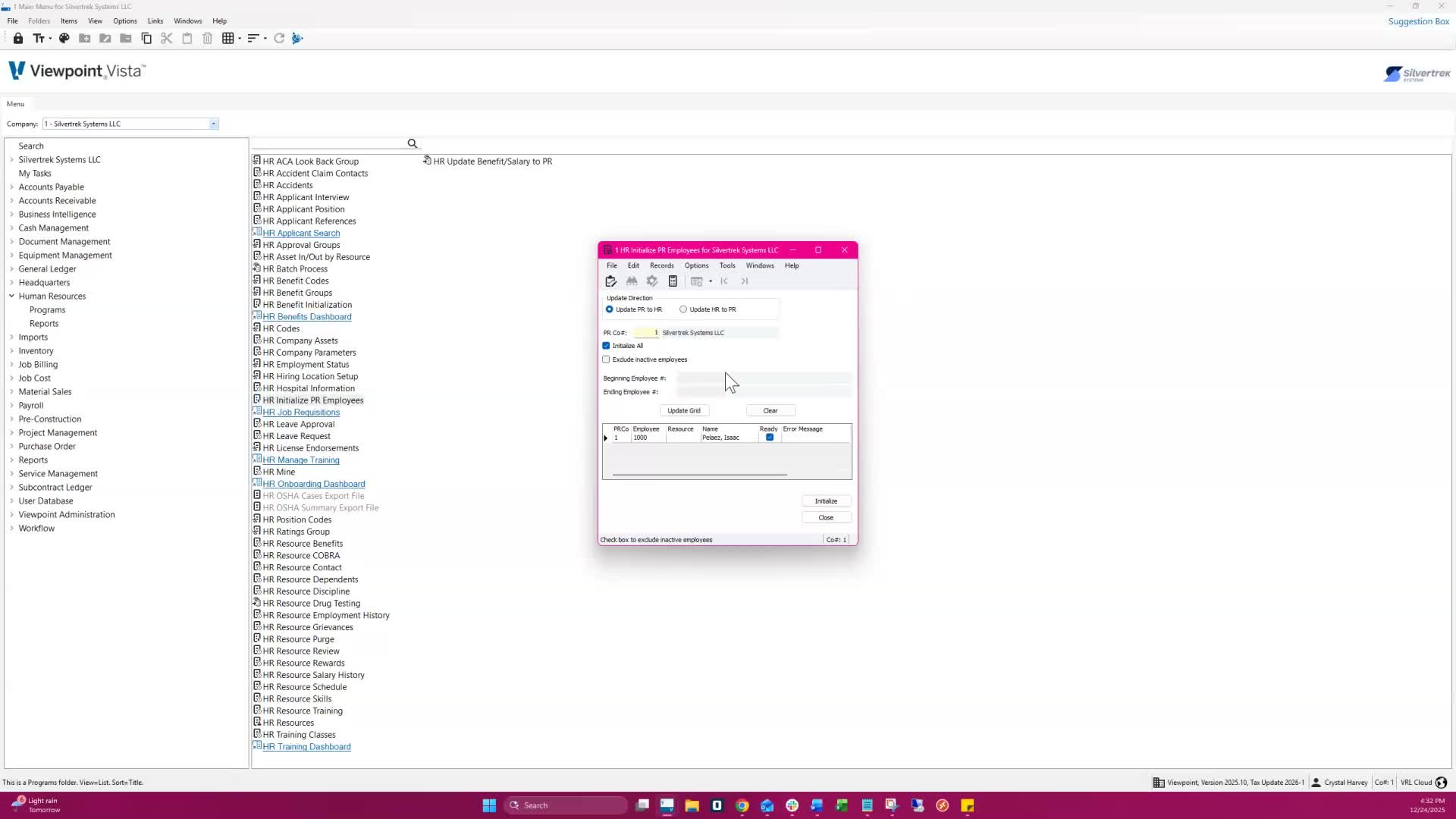
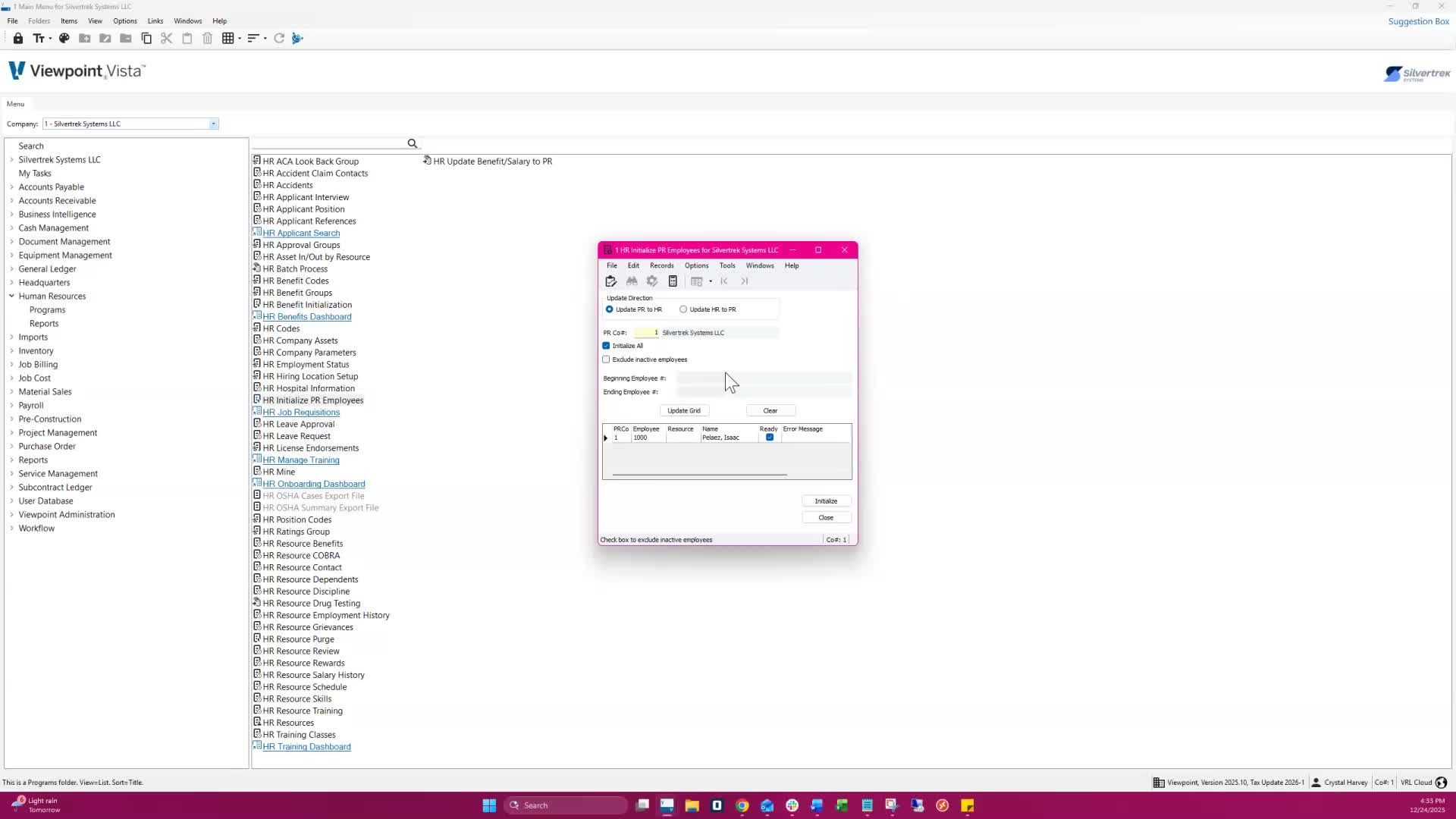
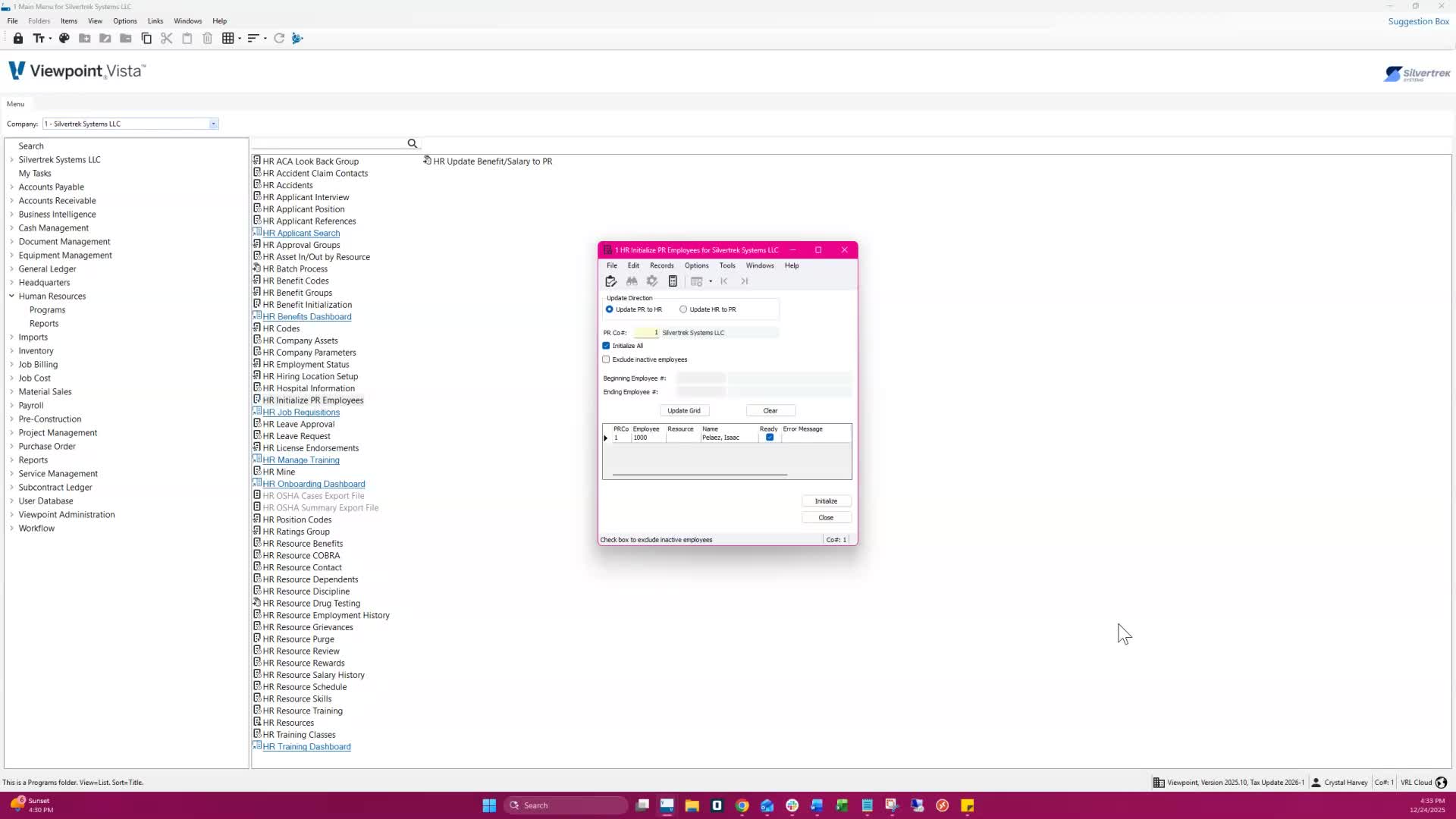
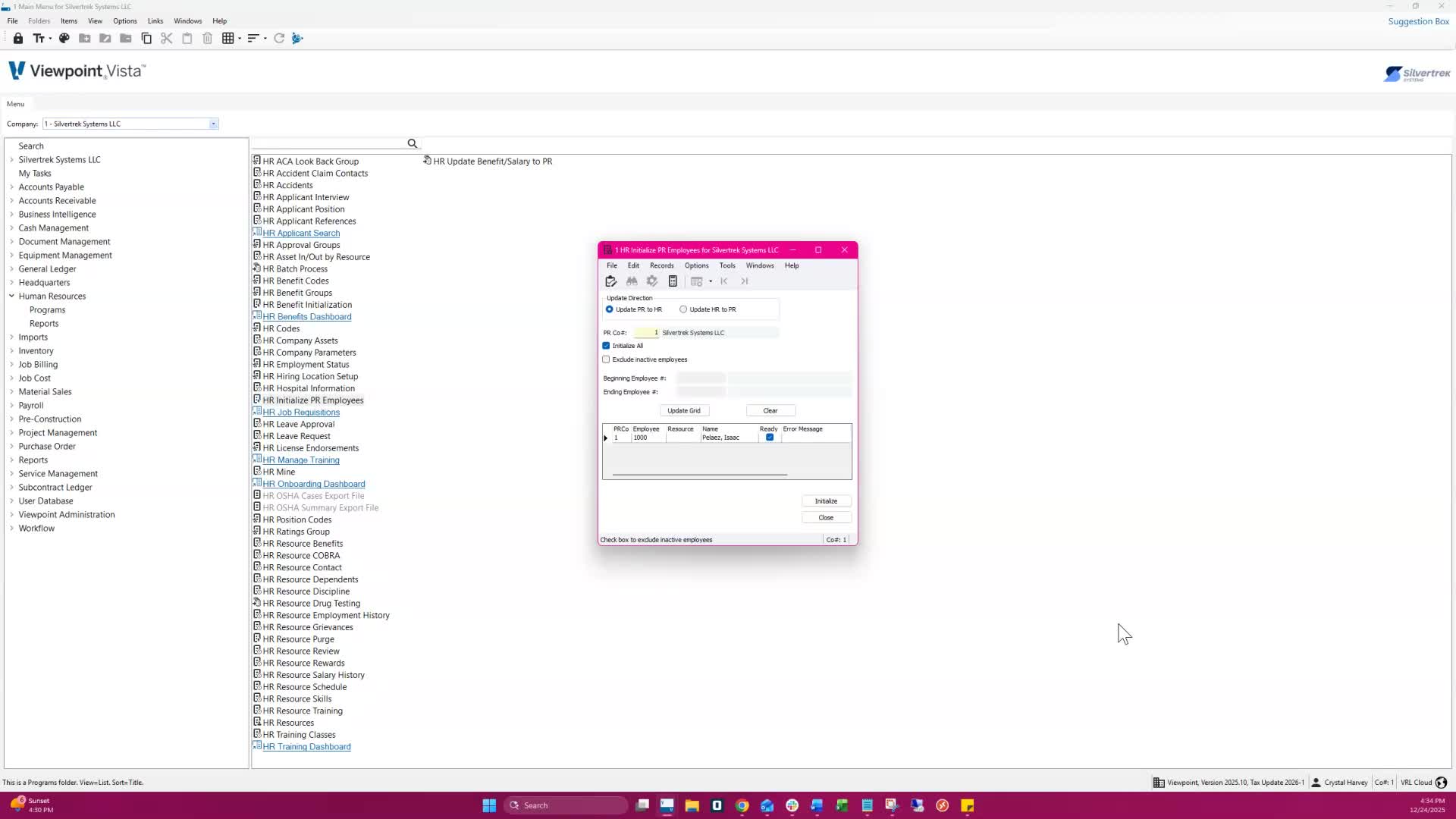
- Open HR Initialize PR Employees in HR module > Programs.
- Select direction: Update PR → HR or Update HR → PR.
- Choose PR Company (F4 lookup).
- Options:
- Check Initialize All to include all eligible employees.
- Check Exclude Inactive Employees if needed.
- If not initializing all, enter Beginning and Ending Employee # to define a range.
- Click Update Grid – eligible employees/resources appear.
- Check the Ready box for entries that are ready to initialize.
- Click Initialize to complete the update.
Notes & Tips
- Numbering:
- If the employee/resource number already exists, the system assigns the next sequential number.
- Required Fields for HR → PR:
- PR Co, PR Group, SS#, Department, Earn Code, Craft, Class, Insurance Code, Local Code, Race, Insurance State, Unemployment State
- If missing, the Ready flag = N and update won’t occur.
- Use the HR to PR Initialize Check report to identify missing/invalid info.
- Grid Controls:
- Clear removes entries from the grid.
- Yes → clears only entries not ready.
- No → clears all entries.
Result
- All eligible employees/resources are initialized to the target module with proper numbers and required data.
HR Initialized to PR Form Procedure
Objective
This SOP outlines the steps to effectively use the HR Initialized to PR form for syncing employees and resources between HR and PR systems.
Key Steps
1. Introduction to HR Initialized to PR Form 0:00
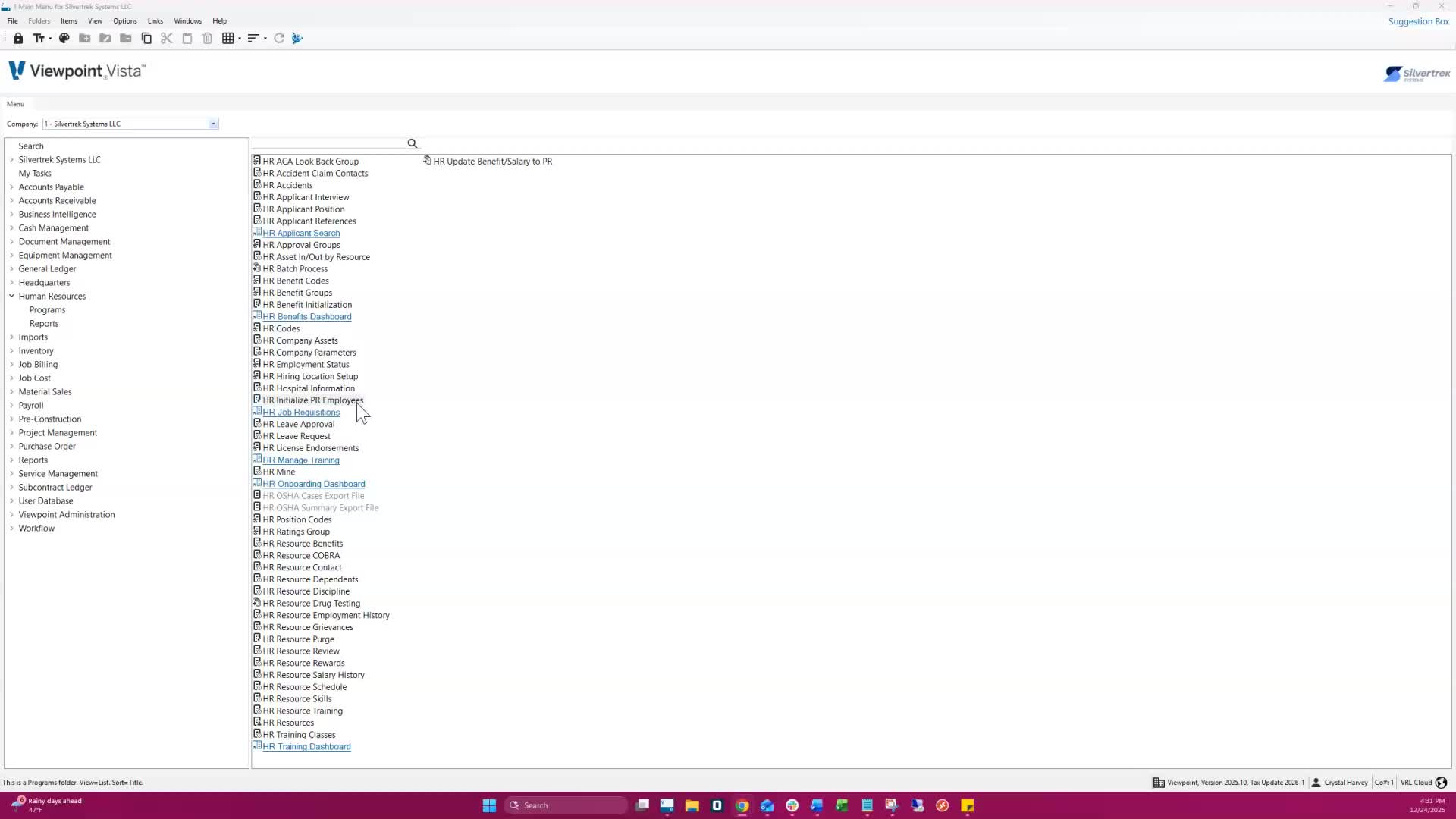
The HR Initialized to PR form is used to sync employees and resources between PR employees and HR resources.
Typically used during initial setup, adding new employees/resources, or when adding the HR module after payroll is in use.
2. When Not to Use the Form 0:26
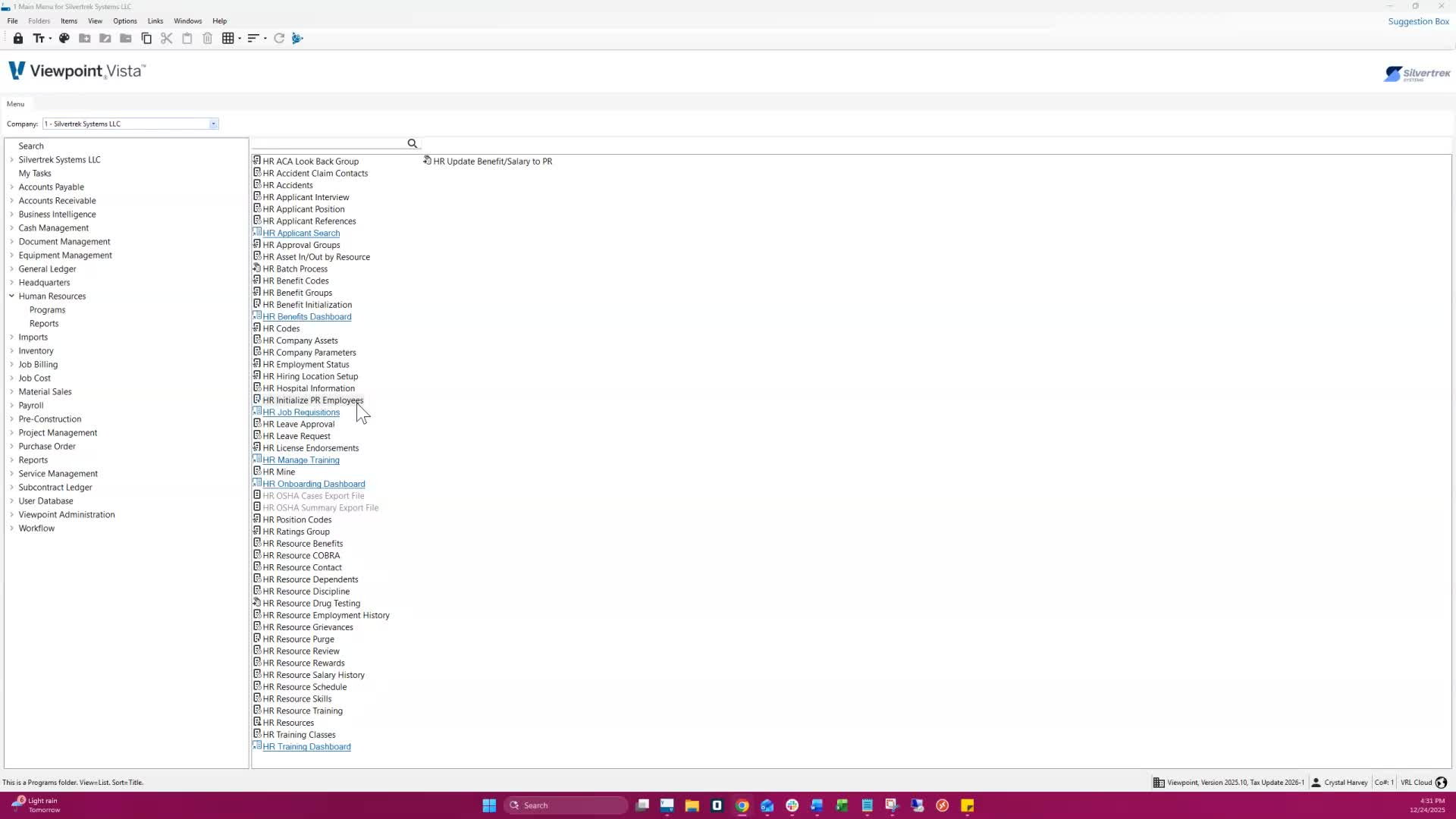
Do not use this form to update employee changes.
For updating employee details, benefits, or salary, use the HR Update Benefit Salary to PR form.
3. Choosing Update Direction and Payroll Company 0:39
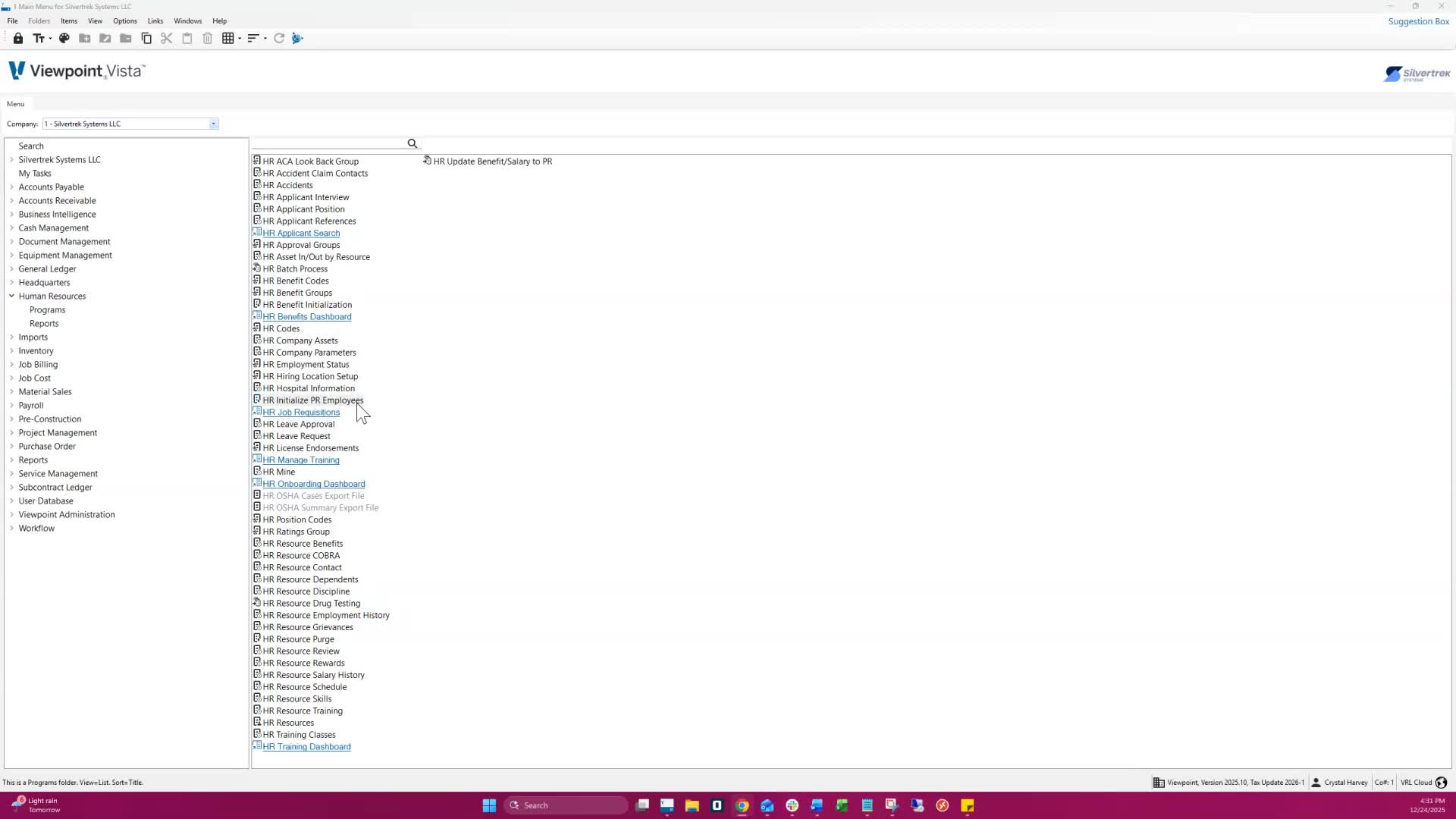
Select the direction of the update: PR to HR or HR to PR.
Designate the appropriate payroll company.
4. Selecting Employees or Resources 0:51
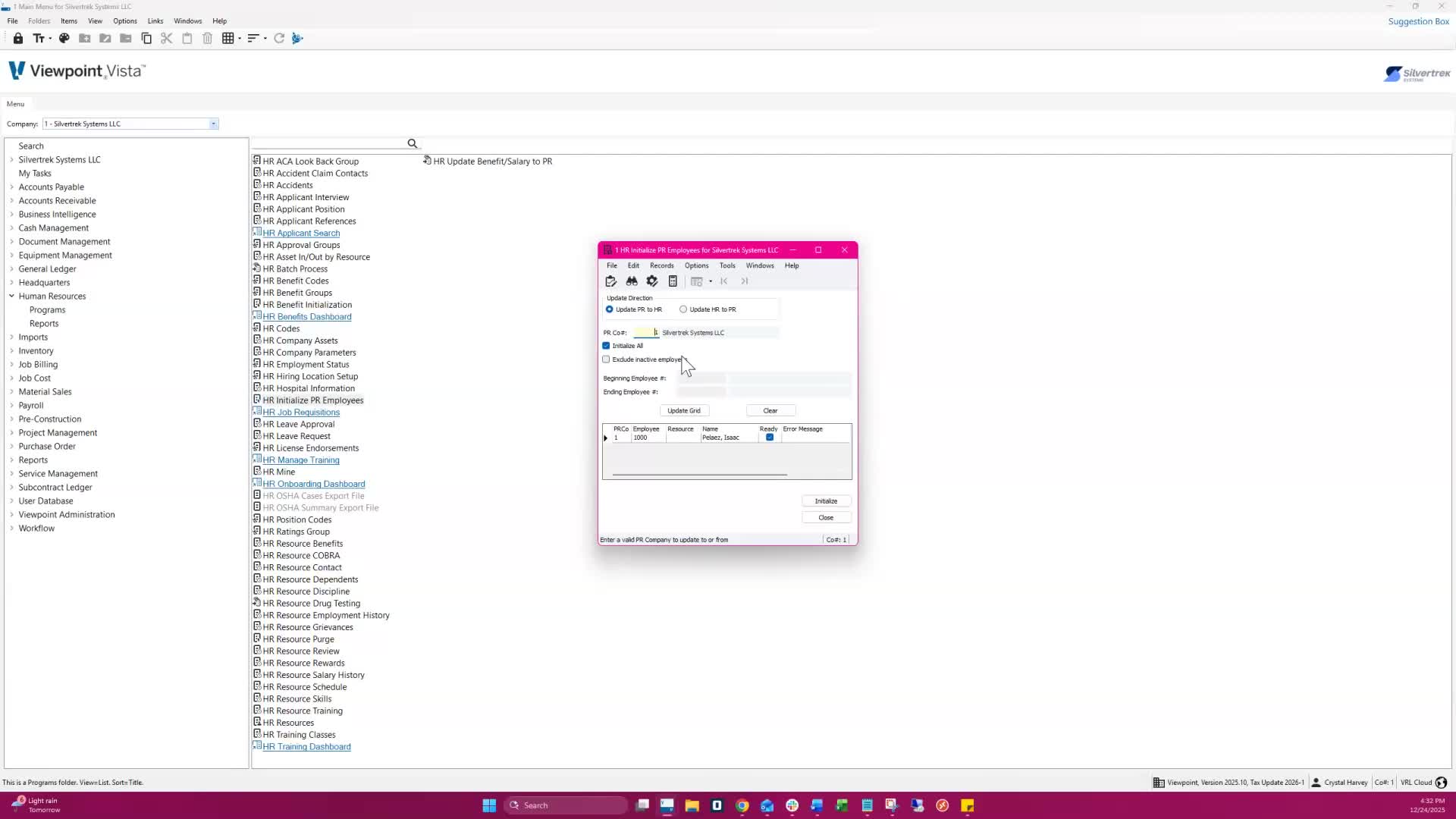
Choose whether to initialize all employees/resources or a specific range.
Option to exclude inactive employees/resources.
5. Understanding Inactive Status 1:02
Inactive means the PR employee record is marked inactive or the HR resources have the active PR employee box unchecked.
6. Rules for Initializing Payroll to HR 1:10
Ensure no HR resource exists with the same social security number.
The system will attempt to use the same employee number as the resource number; if it exists, the next available number will be assigned.
7. Rules for Initializing HR to PR 1:28
Ensure no PR employee exists with the same social security number, employee number, or next available name.
The Exist in PR box must be unchecked.
8. Required Fields for HR to PR Update 1:45
Fill in the following fields on the employee record:
PR company
PR group
Social security number
Department
Earnings code
Missing fields will prevent the HR to PR update from running.
9. Additional Required Fields 2:16
Include the following additional fields:
Craft class
Insurance code
Local code
Race
Insurance state
Unemployment state
Missing any of these fields will set the ready flag to end and display an error message.
10. Using the HR to PR Initialized Check Report 2:33
Utilize the HR to PR initialized check report for details.
In the HR initialized PR employee case form, click 'update grid' to load eligible records and review the ready flags.
11. Clearing Records and Initializing Update 2:45
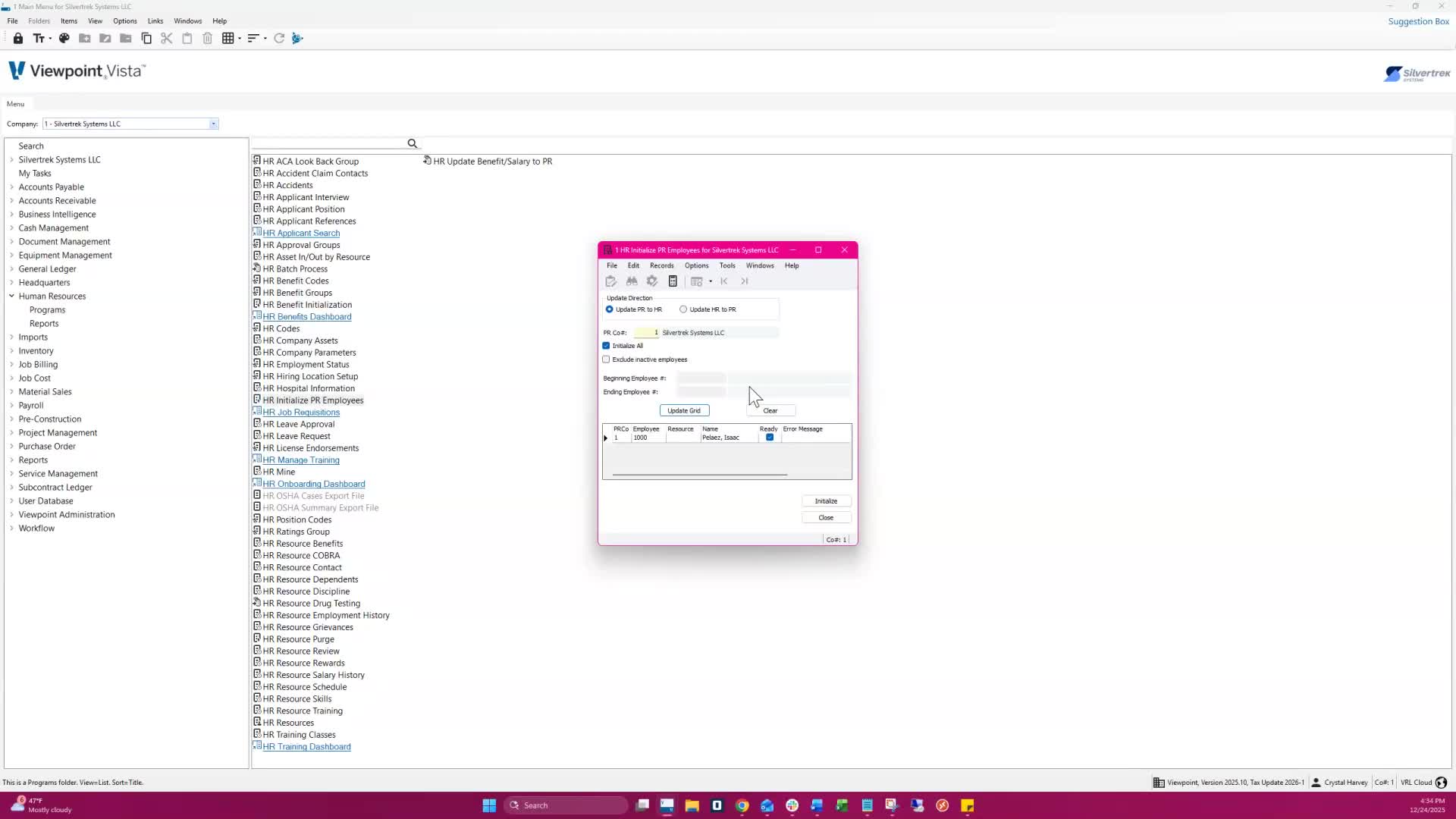
Use 'clear' to remove records that are not ready.
Click 'initialize' to complete the update.
A message will confirm that the update was completed successfully.
Cautionary Notes
Ensure all required fields are filled out to avoid errors during the update process.
Double-check for existing records to prevent conflicts with social security numbers or employee numbers.
Tips for Efficiency
Familiarize yourself with the required fields before starting the process to streamline data entry.
Regularly check for updates or changes in procedures to ensure compliance with the latest guidelines.
Link to Loom
Was this article helpful?
That’s Great!
Thank you for your feedback
Sorry! We couldn't be helpful
Thank you for your feedback
Feedback sent
We appreciate your effort and will try to fix the article