Use the AP Unapproved Invoice Status form to:
View invoices pending review, approved, or rejected
See which invoices are assigned to specific reviewers or reviewer groups
Review approvals and rejections
Email reviewers
View invoice attachments
Access Unapproved Invoice Posting
How to Find Invoices
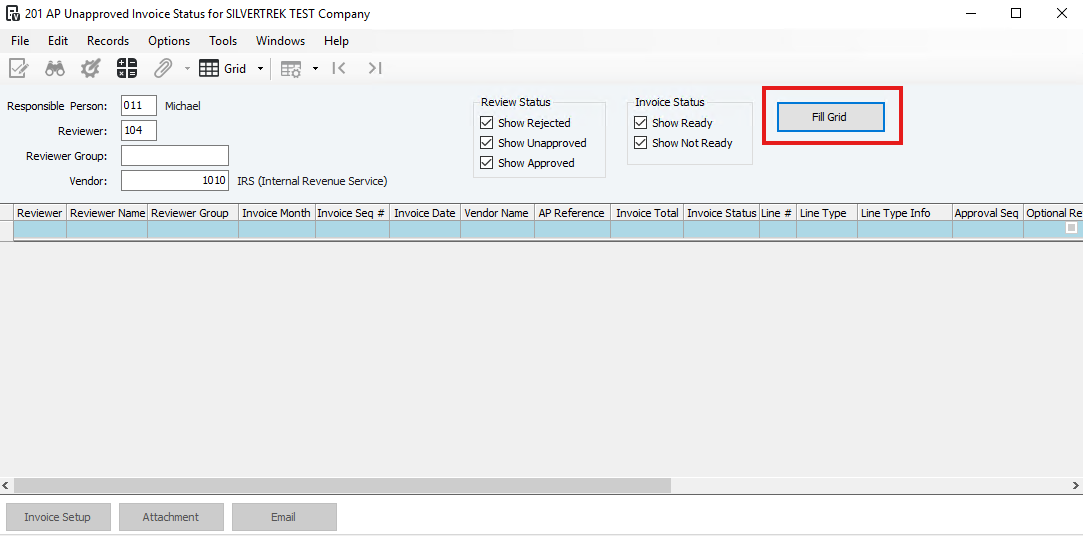
Use one or more of these filters (press F4 to select):
Responsible Person – Shows invoices assigned through reviewer groups where that person is the responsible owner
Reviewer – Filters by assigned reviewer
Reviewer Group – Filters by reviewer group
Vendor – Filters by vendor
Important:
If a reviewer group is removed and re-added manually on an invoice, filtering by Responsible Person may not work. To fix this:
Remove the reviewer group
Save the invoice
Reassign the reviewer group
Status Checkboxes
Use these to narrow or expand results:
Show Rejected – Rejected lines (red)
Show Unapproved – No action taken yet
Show Approved – Approved lines (blue)
Show Ready – Ready for reviewer visibility
Show Not Ready – Not yet visible to reviewers
Reviewer Visibility Rules
If a reviewer group is assigned at the line level, only that group’s responsible person sees the line
The header-level responsible person will not see line-level reviewer status
Viewing and Managing Invoices
Enter filter criteria
Select at least one status checkbox
Click Fill Grid
Viewing and Acting on Invoices
To see invoice details or make changes, select the invoice and click Invoice Setup
(Security access required)When you select an invoice line:
Invoice Total shows the full invoice amount
Line Details depend on the line type:
Job: job / phase / cost type
Equipment: equipment, cost type, cost code
Inventory: location / material
Expense: material
PO: PO number / item
SL: subcontract, job, phase, cost type
Emailing Reviewers
Select the invoice line and click Email
Your email opens automatically, addressed to the reviewer
The subject line fills in invoice and line details
Use Reviewer Memo to add notes if needed
Posting Unapproved Invoices
If ready to post, go to File > Unapproved Invoice Post
The system automatically:
Restricts by Responsible Person
Fills in the responsible person’s ID
Was this article helpful?
That’s Great!
Thank you for your feedback
Sorry! We couldn't be helpful
Thank you for your feedback
Feedback sent
We appreciate your effort and will try to fix the article